

Share the downloaded video file when you want someone to watch your Zombie Couple Video. Keep the private task link for order access and support. Those two things serve different purposes: a public post should not expose the link used to manage your personal order.
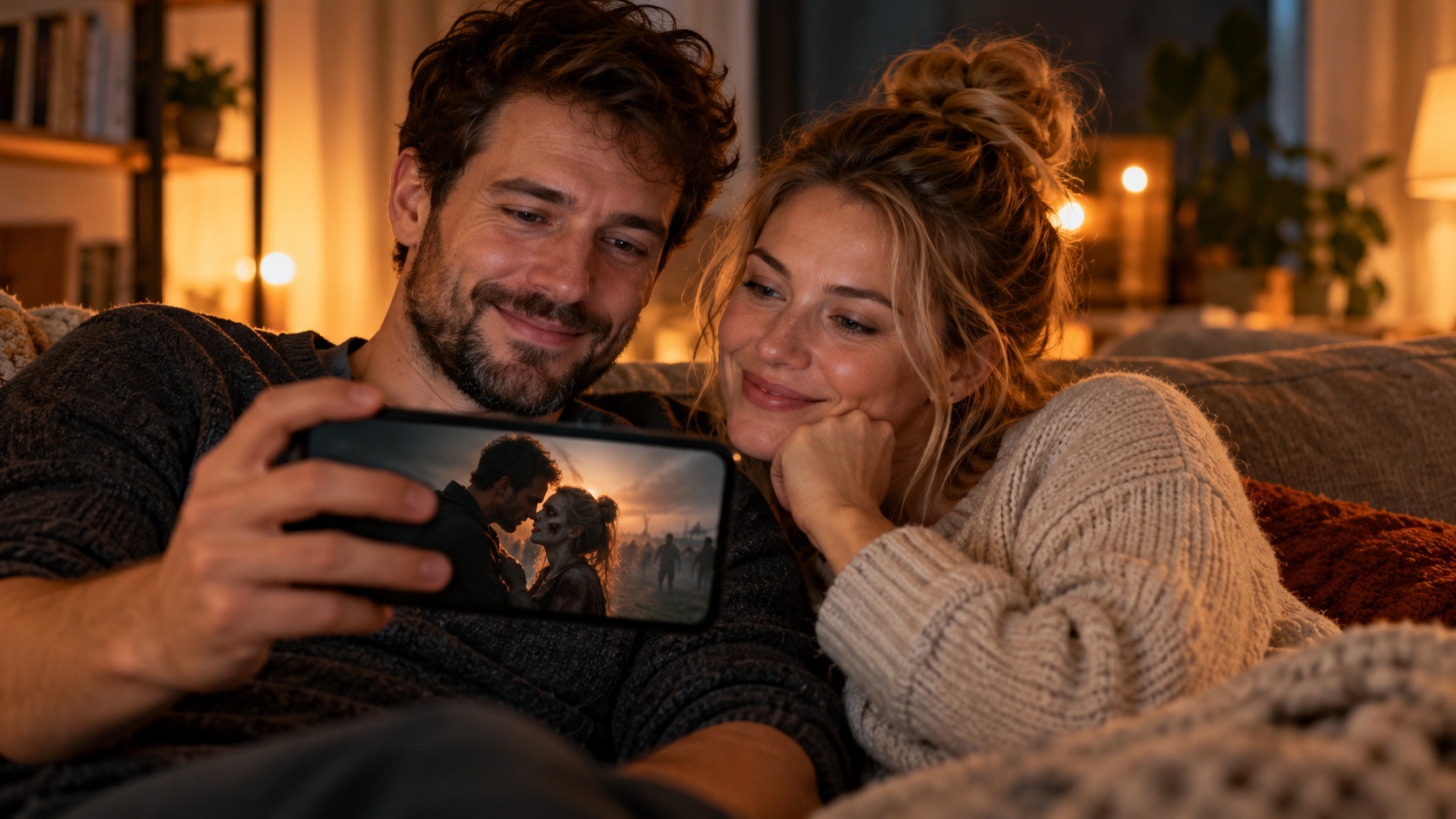
AI-generated editorial illustration with fictional adults; not an actual software screenshot or a verified generated-video result.
Start with a saved original
Open the completed task, download its MP4 and play the saved file. If the video is not in your gallery, first check the browser's downloads and Files/Downloads folder. The download guide explains phone and desktop saving without treating a screenshot or screen recording as the original.
Keep a backup before making edits or uploading. The website's video storage is time-limited under the privacy policy; the email is not a permanent file archive. The current original is 10 seconds, 720P and 16:9 landscape, so choose a sharing layout that suits that source.
How to share it on Instagram Reels
- In Instagram, open the flow for creating a Reel and choose the saved video from your device. Button names and available editing controls can vary.
- Preview the full sequence. Check that both people remain visible after any automatic crop or adjustment.
- Choose a cover, description, sound treatment and audience settings deliberately rather than accepting a cropped first frame without looking.
- Use the AI disclosure controls relevant to the post, then review once more before publishing.
If the app cannot find the video, confirm that you actually downloaded it and that the app can access the relevant local media. If it rejects an export, follow the current in-app requirements using a separate copy; do not overwrite your only original. This article is a workflow guide, not a claim that we have uploaded every browser, file and account combination to Instagram.
Keep landscape, fit it, or crop it?
A vertical canvas can contain the complete landscape picture with space above and below. Cropping to fill the canvas instead removes side content. Watch every shot before deciding: one face near the edge can disappear even if the opening shot looked fine. A square profile preview may show another crop again.
The site does not have a native Reels-generation switch. External editing is optional if you want a particular layout. See landscape versus portrait for fit/crop examples, and resolution explained before assuming a 1080P export adds original detail.
Caption ideas: post descriptions or words on the video?
The word “caption” can mean three things: the description under a social post, a text overlay inside the picture, or subtitles transcribing spoken words. Pick the one you actually want. A short romantic line does not require automatic speech recognition, and editing a post description does not change the MP4.
The website's current ordering form has no caption editor or custom-text field. The ideas and editing steps below are optional after downloading. You do not have to purchase another video just to write a post description or edit your own copy.
Romantic captions for a zombie couple video
Use one line that fits the mood rather than filling every second with text. Here are short example lines written for this guide; they are not quotations from a film or song:
| Mood | Example | Another option |
|---|---|---|
| Choosing each other | Even now, I choose you. | The world changed. My choice didn't. |
| Reunion | I would find you in every ending. | One more moment, together. |
| Quiet affection | Still you. Still home. | After everything, us. |
Sad captions without changing the story
Try “I remembered us before the silence,” “Some goodbyes arrive too early,” or “The city went quiet. I kept looking.” Choose language that matches your actual clip. A line about death, loss or a final goodbye can change how the audience reads a reunion, so don't add it automatically to a warm scene.
Short quotes for a small phone screen
“Still us.”, “Found you again.” and “Stay, just a moment.” leave more room for the two people. You can use a longer thought in the post description instead. These examples are choices for your own edit, not guaranteed text produced by the video model.
How to add text after downloading
Keep the original MP4 and open a working copy in an editor with a text layer. As one documented example, CapCut's official text guide describes importing media, adding text from its Text panel, styling it and exporting. Its text-editing help explains selecting the text element or track before changing it. The exact controls, sign-in requirements and export terms depend on the version you use; we have not completed every CapCut version's workflow.
For your own short edit:
- Choose the final landscape or portrait layout first. Moving to a different canvas later can put text over a face.
- Add one text layer and type the chosen line. Set its start and end on the timeline so viewers can read it without covering the whole story.
- Adjust size, contrast and position at the actual viewing size. A subtle dark backing can be easier to read than a decorative font on a busy background.
- Scrub through each shot and watch once at normal speed. Check spelling, line breaks, both faces and any hands or action the text could hide.
- Export a separate copy, then preview that copy in the destination app. Keep the original and the editable project.
Manual romantic text is different from subtitles for speech. If the soundtrack contains words, automated captions still need a spelling and timing check. Don't let automatic transcription turn music or effects into invented dialogue.
Where should captions go so they don't cover faces?
Use empty space in the actual shot, not a universal “safe” coordinate. In this illustration the people are high enough that a short line can sit lower; another clip could have hands or a face in that same area.
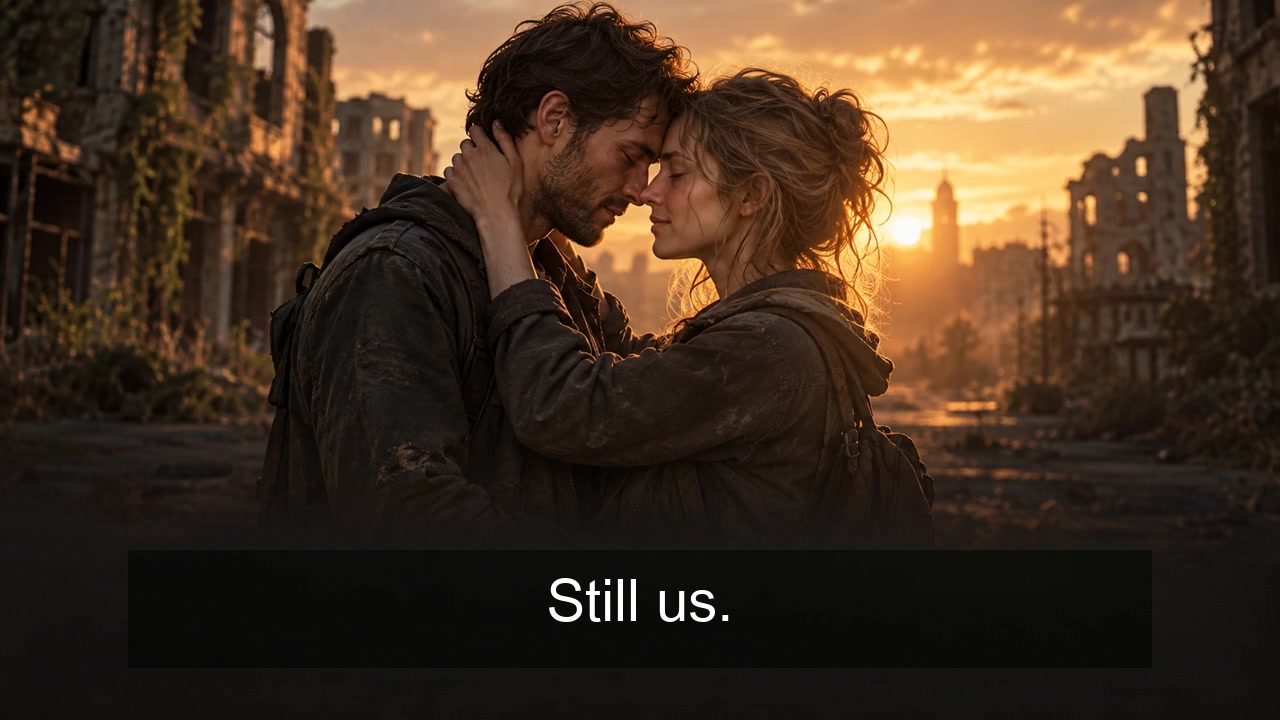
Placement example made from an AI illustration of fictional adults; not a screenshot of the site's editor or a real order result. This location is not a guaranteed safe zone for every shot or platform.
Check every scene change, including the frames immediately before and after it. For a portrait canvas, you can sometimes use the space above or below a fitted landscape video. Still preview the social app's buttons and description area: its interface can cover text that looked fine in an editor. Keep essential wording away from those controls without assuming their position is identical on every device.
If there is no stable empty area, shorten the line, show it for fewer appropriate shots, or put it in the post description instead. Text should not force you to hide the people you paid to feature.
How do I remove captions from my video?
| Where the text lives | What you can do |
|---|---|
| A post description | Edit it using the platform's current controls; this does not alter your saved MP4 |
| A text layer in your editor project | Select your text layer and delete or disable it, then export a new copy |
| A separate subtitle track or file | A compatible player or editing/remuxing tool may let you disable or remove that track |
| Letters burned into the picture | Return to the clean original if you have it; deleting a subtitle track cannot restore the covered pixels |
If the words exist only in a flattened social-media download, a blur, crop or generative fill is an alteration with tradeoffs, not guaranteed recovery of the original scene. Re-export from your clean source when possible. This advice concerns your own captions; a creator credit, licence attribution or watermark has a different purpose and should not be treated as an expendable text overlay.
Be clear that the scene is AI-generated
Meta's current explanation of AI-content transparency includes organic content beyond political ads: it describes disclosure requirements for digitally created or altered photorealistic video and realistic audio. Use the platform's applicable disclosure tools and describe this fictional reunion accurately.
Permission to use a person's photo for generation is not automatically permission to publish the result to a public audience. Agree with both adults on where it will appear. Do not use another person's likeness to imply they actually took part in the fictional event. Adding an AI label does not settle every consent or platform-policy issue.
Private sharing and public posting have different risks
For a direct message, you can send the MP4 to the intended recipient or share a file you control with appropriate access settings. Messaging and social services may compress videos; do not promise that every recipient sees a byte-identical original. If quality matters, use an available file/document transfer mode and verify what arrived.
A cloud-file link can also be forwarded depending on its permissions. A private message is not a guarantee that the file can never be copied. Public posts are easier for others to save, so share only with the subjects' permission and keep personal order details out of the post.
For TikTok-specific framing and disclosure, use the TikTok guide. If you want to change sound, check the audio and music guide. The site's configured audio reference is not permission to reuse arbitrary commercial songs, and this article does not promise reach or payment conversions from a post.