

AI video can include generated sound as well as moving images. Some products generate silently, some create audio and video together, and others add a soundtrack later. You need to check the particular service rather than assume that every AI video is silent.
Cover illustration: AI-generated editorial artwork, not a software screenshot or a verified video-generation result.
For Zombie Couple Video here, the current order flow enables audio generation and supplies a fixed audio reference. Customers receive the model's finished MP4 with its audio; adding a soundtrack yourself is not a required delivery step.
Generated audio, a reference and an added track are different
| Audio method | What happens | What to expect |
|---|---|---|
| Silent generation | The requested output has no usable soundtrack | Sound must be handled separately if wanted |
| Joint audio-video generation | A model produces picture and sound in the generation workflow | Music, ambience or effects can vary with the result |
| Audio reference | A supplied recording guides supported aspects of generation | A reference does not by itself promise unchanged playback |
| Added soundtrack | An editor places a recording on an existing video | Timing and mixing are handled in that editing workflow |
These categories can overlap. A model may generate audio and video together while also taking an audio reference. ByteDance describes this joint, multimodal capability in its Seedance 2.0 introduction.
Do not treat a model's capability description as proof of exact synchronization in every output. A scene can contain sound while a breath, contact or musical change still lands slightly early or late.
What the fixed audio reference means on this site
The product supplies the reference during generation. The public ordering form does not ask you to choose a song, upload a voice, write dialogue or provide a separate music file. The normal workflow also does not depend on a manual soundtrack edit after each order.
“Fixed reference” describes the input used to guide generation. It does not mean the returned recording will be an unchanged copy of that file. The model's sound, musical phrasing and scene timing may differ between orders.
The homepage demonstration shows the intended mood, not a promise that every personalized clip will have precisely the same sound at precisely the same frame. If exact musical placement is the main requirement for your project, this fixed-story offer may not be the right fit.
Listen to the finished file before sharing
Start with the original downloaded MP4 rather than a screen recording or a messaging-app preview. Use headphones once, then listen on the device you expect the recipient to use.
Check three things separately:
- Playback: is the player muted, and does another local video play normally?
- The sound itself: is there audible content, and is it intelligible without clipping or harsh distortion?
- The relationship to the picture: do prominent sounds feel reasonably connected to the visible action and the scene change?
A muted browser is a playback issue. Audible effects that do not suit the scene are a result-quality issue. Reporting those as different symptoms makes it easier to investigate the right problem.
For a serious problem, retain the original file and describe the moment in the video when it occurs. Use order support and follow the current retry and refund guidance. This article does not promise an automatic refund or a free revision of every completed clip.
Adding your own music is optional
After downloading, you can edit your own copy in a video editor. If replacing the sound, mute or reduce the existing track deliberately; simply layering another song over it can leave two competing soundtracks.
That is a personal editing choice, not a requirement to finish the video you bought. The site does not currently offer a customer soundtrack-selection field or a song-identification service.
For brand or product promotion on TikTok, check its commercial music guidance. A sound being available to play or download does not establish permission for every use. Availability in one platform's music catalogue also does not establish rights to export that recording everywhere else.
How to add music to your downloaded video
You can make an edited copy after delivery. There is no customer soundtrack-upload field in the website's order form, and the original MP4 normally already contains generated audio. Decide whether you want to replace that sound or mix a new track with it before importing a song.
CapCut's official music guide describes importing video, placing an audio clip on the timeline, adjusting controls such as volume and fades, then exporting. That is an external editing workflow; its library, login and export terms are separate from this site's one-time order.
A practical sequence for your own file is:
- Keep the delivered original. Import a copy into an editor, along with a recording you have permission to use.
- Listen to the original audio by itself. If replacing it, mute or remove that track in the project; if keeping ambience or effects, lower and balance it deliberately.
- Add the chosen music, select the short passage you need and trim it to the actual video length. Check both ends so audio does not continue after the picture or stop abruptly by accident.
- Set a listening level that keeps any important original sound audible. Review using headphones and the phone speaker rather than relying on a fixed percentage that may differ across recordings.
- Add a fade only where it helps the transition. Export a separate file and listen to the entire export; the timeline preview alone does not prove the exported mix is correct.
If the editor gives separate audio and video export controls, avoid changing the picture unnecessarily. Some workflows can copy the video stream while editing audio; this is a technical option, not a guarantee made about every editor. FFmpeg's streamcopy documentation explains that distinction.
Finding music with usable permission
“Copyright-free” in a title or comment is not a licence. Start from the track's actual source, identify the recording and its terms, and check whether your intended platform, commercial use, edits and distribution are covered. Save the source URL, track/artist name, licence version and any required credit while you still have access.
Useful starting points are:
| Source or permission | What to check |
|---|---|
| Music you created or commissioned | Do you control the needed composition and recording rights, and have any collaborator permissions? |
| A track genuinely released under CC0 | Verify the release came from an authorized source; CC0 does not waive every other kind of right |
| A track under CC BY 4.0 | Retain appropriate credit, licence link and a note of changes as required |
| A platform or editor library | Read the selected track's current licence and allowed destinations, not just the library's marketing heading |
For example, YouTube's Audio Library help explains its licence/attribution filters and credit instructions. It also distinguishes its own library from “royalty-free” uploads elsewhere and does not settle off-platform use for you. Verify permission for Instagram, TikTok or other destinations separately rather than assuming a YouTube-safe track is universally cleared.
This is a way to choose and document music, not an endorsement of an unchecked track. No specific commercial song is identified or licensed by this article. The fixed reference used by the site's generator is not a promise to deliver a named song or permission to reuse arbitrary recordings.
How to sync music with the story
Use your own finished clip's timing. The model can change shot lengths, so a beat at a particular second in one order may fall between shots in another. Listen to a short usable section of the track, choose one or two meaningful accents, and line them up with events actually visible in the video.
- Watch the video without the added track and mark the meaningful change: a cut, a turn toward the other person, or the reunion.
- Find the musical accent you want there. Move the audio clip or its in-point so the accent meets the visual marker.
- Recheck the beginning and end after shifting it. Trim excess sound or use an appropriate fade, keeping the final duration intentional.
- Listen at normal speed. Leave breathing room; not every motion or cut needs a beat, and a short music segment may work better than forcing the whole song structure into 10 seconds.
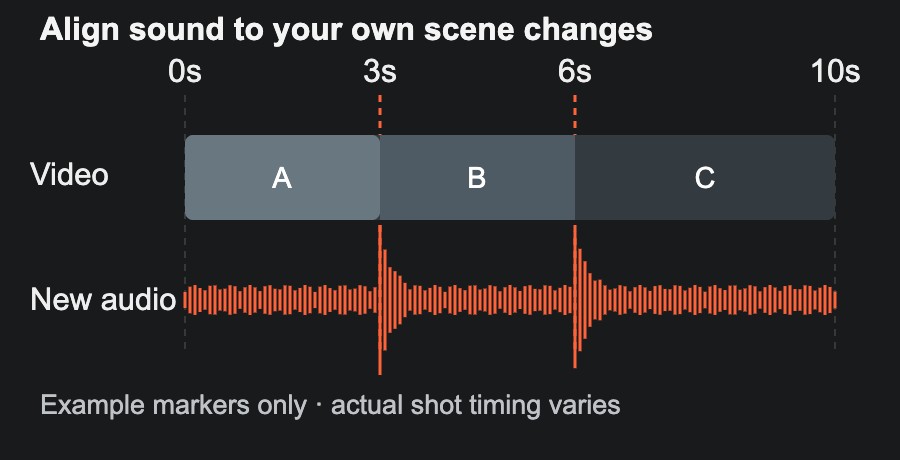
Timing diagram only. The 3-second and 6-second markers belong to a local editing demonstration, not a fixed cut list for orders. Use your actual shot changes.
The diagram illustrates a deliberate editing choice. It does not mean the model's generated audio will automatically land on your preferred beats. Preview the actual export after aligning the sound.
If exact beat placement is essential, keep the editable project and recheck the exported copy. If you only want to post the original, no extra soundtrack edit is required. The sharing guide covers optional text and platform preview checks.
Frequently asked questions
Is the delivered video silent by default?
No. The current fixed-story flow requests generated audio and provides an audio reference. If your downloaded file appears silent, check playback first, then report the specific problem.
Can I choose the song before paying?
No. The current form does not offer music selection or custom audio uploads.
Will the soundtrack be identical to the homepage demo?
That is not guaranteed. The reference is fixed, but generation and timing can vary.
Can the video speak a line I write?
The current product does not accept custom dialogue. A general-purpose model's speech features are not automatically features of this ordering flow.
Do I have to add sound in another app?
No. You receive the finished generation. Editing your downloaded copy is optional. The creation guide explains the actual order and delivery process.