

The current Zombie Couple Video is a 16:9 landscape MP4 at 720P, regardless of whether you order on a phone or computer. You can adapt that finished file for a vertical post, but fitting it inside a portrait canvas and cropping it to fill that canvas produce different results.
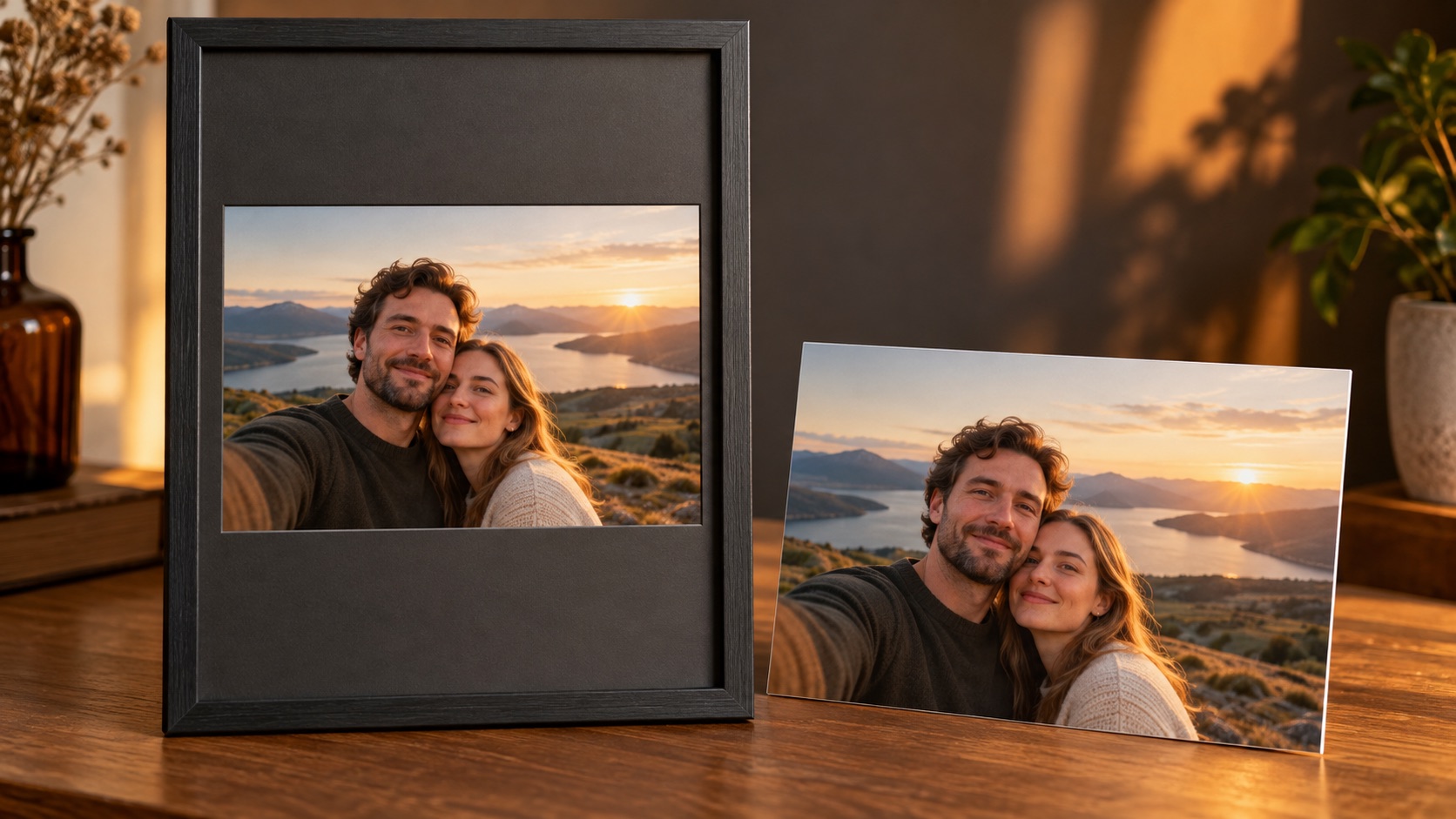
AI-generated editorial illustration with fictional adults; not an actual software screenshot or a verified generated-video result.
Three choices for a vertical destination
| Choice | What happens to the picture | Main tradeoff |
|---|---|---|
| Keep the original landscape file | The destination player decides how to display it | You keep the delivered frame, but its on-screen size depends on the player |
| Fit the full picture inside a portrait canvas | The whole wide picture remains, with space above and below | Faces appear smaller in a tall feed |
| Fill the portrait canvas by cropping | Side content is removed to make the picture tall | A face, hand or story detail may leave the frame |
None is universally wrong. Choose after watching the actual video, not just its first thumbnail. A close two-person shot may survive some cropping; a wider shot may need the entire frame. A clip that changes shot scale needs checking at every cut.
What does cropping remove in numbers?
For a standard 1280 × 720 landscape frame, a centered 9:16 crop at the same 720-pixel height is only 405 pixels wide: 720 × 9 ÷ 16 = 405. It keeps about 31.6% of the source width. That calculation explains the risk; it does not prove that every particular shot becomes unusable.
If the two people stand far apart, a fixed center crop can lose one of them. Moving the crop may help one shot but need adjustment after the next cut. Do not stretch the source non-uniformly just to fill the screen: that changes the shapes of faces and bodies.
How to keep both people without cropping
In an editor that supports canvas or background settings, create a portrait project and choose a fit-style placement. For example, a 720 × 1280 canvas can contain the full landscape picture at 720 × 405, leaving room above and below. The unused area can be a plain background or another deliberate design choice supported by your editor.
This is an editing layout, not a claim that the site generated native portrait footage. If you add text in that space, check that social-app buttons and captions do not cover it. Keep the original audio only if it suits your post and you have the necessary permission for the use you intend.
How to export without losing the original frame
For an unchanged landscape version, retain 16:9 rather than choosing a fill/crop preset. For a portrait layout that still shows everything, use fit and inspect the full preview. Avoid enlarging faces unnecessarily. Re-encoding can change quality even when no crop occurs, so preserve the downloaded original and compare your exported copy at the same viewing size.
Selecting a 1080 × 1920 canvas does not turn a 720P source into genuinely more detailed footage. It changes the export's pixel grid. See 720P versus 1080P before treating that label as a quality upgrade.
Before publishing to TikTok or Instagram
- Download and play the original MP4.
- Choose fit or crop deliberately, then check both faces throughout the story.
- Preview the version inside the destination app; its player, feed and profile previews may differ.
- Confirm the visible caption, sound and audience settings before posting.
The website does not currently offer a native vertical-generation switch or an automatic per-shot reframing control. The TikTok guide and Instagram sharing guide describe what to do after delivery. Neither a vertical layout nor a full-screen crop guarantees more views.